> ## Documentation Index
> Fetch the complete documentation index at: https://docs.shade.inc/llms.txt
> Use this file to discover all available pages before exploring further.
# Indexing Materials
> Tips and tricks for indexing materials
## Creating Your Material library
Imagine for a second that you were able to search through all of your materials that you've downloaded or made in the past. All of them created with a perfect tumble, and with tags and descriptions
that allow you to easily search them. That's exactly what Shade has built out. However, we need your help to make sure we get it right. Here are a few tips and tricks to help you get started.
## Naming Conventions and Directory Structure
Unfortunately, Shade can't perfectly detect what is a normal map or displacement map, so we rely on a wide variety of detection algorithms to find it from the filename. Here is a list of a few names we probe for:
Note - all of the names are case insensitive
* Color
* COL
* map
* ALB
* ALBEDO
* Normal
* NORM
* NRM
* DIFF
* DIF
* Diffuse
* Normal\_GL
* Normal\_DX
* NRML
* NRMAL
* Bump
* BMP
* DISP
* Displacement
* DISPLACE
* Metalness
* Metal
* MTL
* AO
* Ambient
* OCCLUSION
* OCCL
* SPEC
* SPECULAR
Note - a material should be in one directory at a time. At this moment, Shade only supports discovering one material per directory structure.
Here is a screenshot of a well-formed texture directory (grabbed from [AmbientCG](https://ambientcg.com/)):
 ## Viewing Your Material library
As Shade detects more materials, Shade will automatically add them to your ~~3D section~~ in the sidebar. You will see a materials tab, with descriptions, tags and previews for all of your textures.
## Viewing The Maps, Descriptions, and Tags
Once you've indexed a material, you'll be able to click on the material in Shade, view it in search results, and see its descriptions and tags.
## Viewing Your Material library
As Shade detects more materials, Shade will automatically add them to your ~~3D section~~ in the sidebar. You will see a materials tab, with descriptions, tags and previews for all of your textures.
## Viewing The Maps, Descriptions, and Tags
Once you've indexed a material, you'll be able to click on the material in Shade, view it in search results, and see its descriptions and tags.
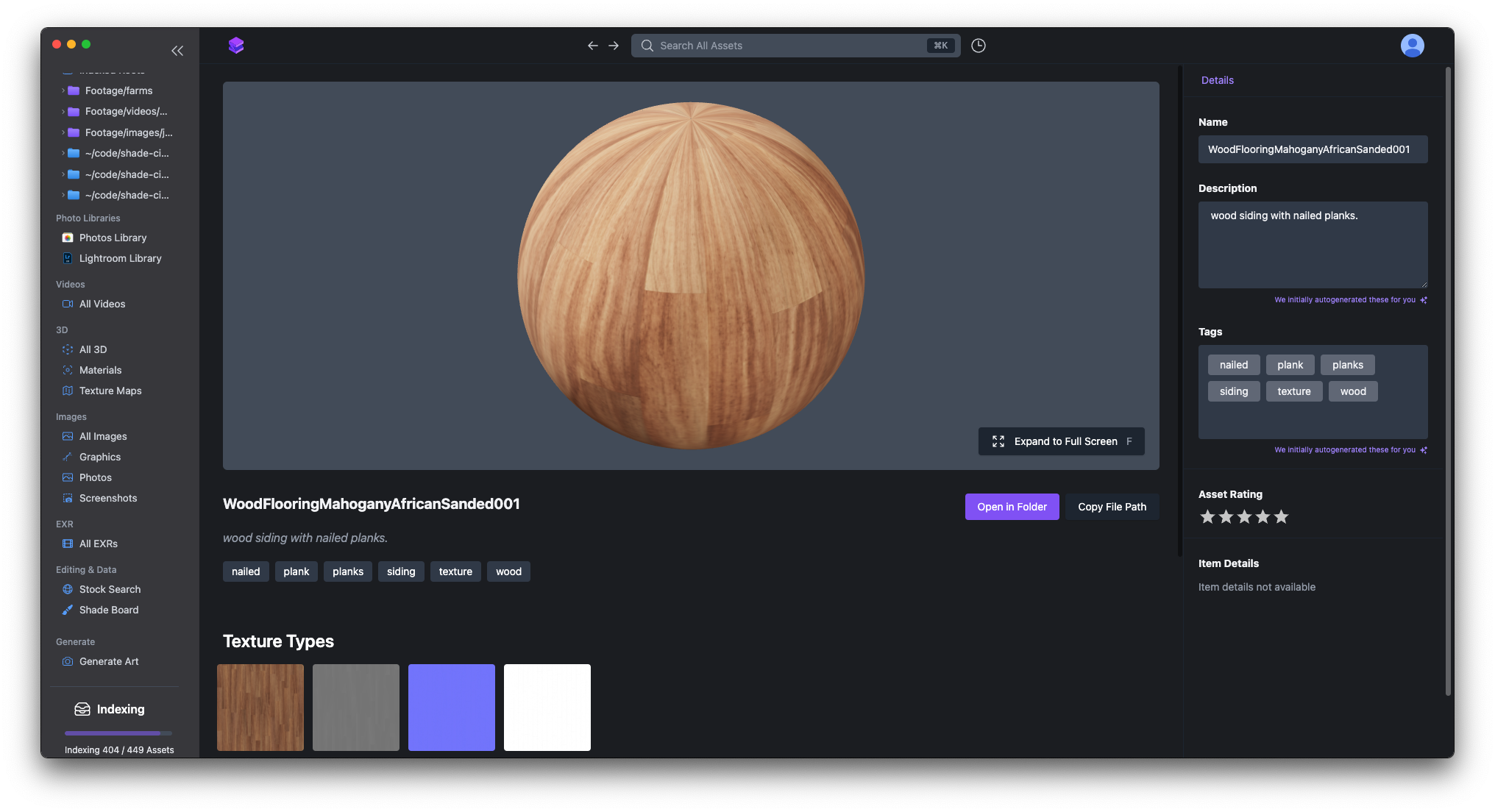 If you need to use this material - simply open it in its folder, and grab all of the maps you need.